Microsoft in queste ore ha reso disponibile per gli utenti Insider una nuove build di Windows 11 dedicata al ramo di sviluppo Beta e Dev Channel.
Da pochi minuti Microsoft ha provveduto a rilasciare una nuova build (versione 26120.5790) dedicata a Windows 11 per gli utenti iscritti al programma Beta Channel e la build 26220.5790 per gli iscritti al Dev Channel.
Beta Channel 26120.5790
New Copilot+ PC experiences
Introducing fluid dictation in voice access
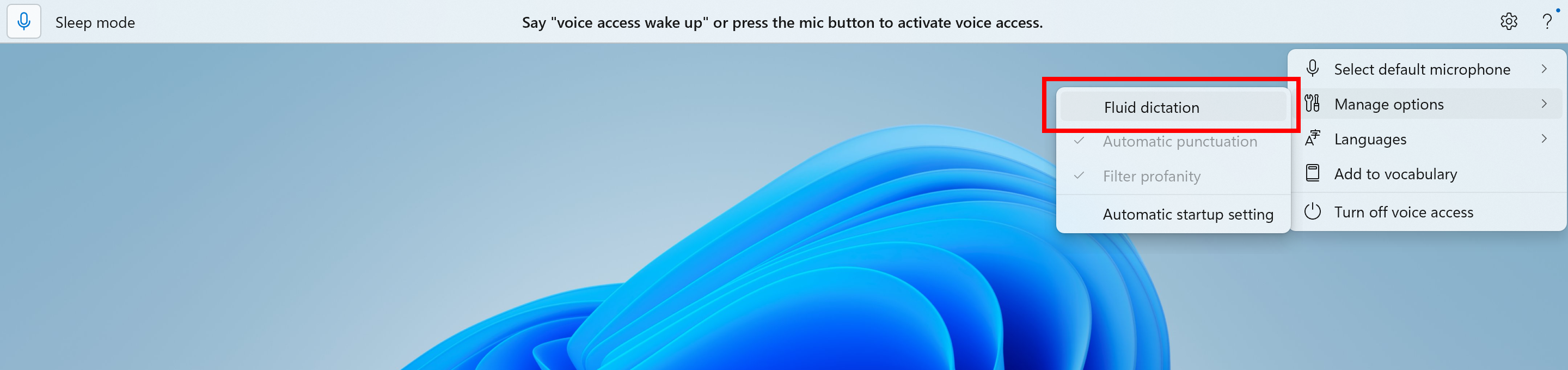
Fluid dictation is a new feature in voice access on Copilot+ PCs, that makes voice-based dictation smoother and smarter. It automatically corrects grammar, punctuation, and filler words as you speak, reducing the need for manual editing. This experience is powered by on-device small language models (SLMs) so ensure fast and private processing. To use it, launch voice access and complete setup if you’re a first-time user. Fluid dictation is enabled by default – you can check or toggle it via the settings flyout in the top-right corner or simply say “turn on/off fluid dictation.”
The option to turn fluid dictation on or off in the settings flyout in voice access highlighted in a red box.
It works in any text app but is disabled in secure fields like passwords or PINs to protect your privacy. Fluid dictation in voice access is currently available in all English locales and is available on all Copilot + PCs.
FEEDBACK: Please file feedback in Feedback Hub (WIN + F) under Accessibility > Voice access.
Making Windows Studio Effects available on additional cameras
We are working to bring the Windows Studio Effects experience from integrated laptop cameras to a broader range of camera hardware, helping you stay professional and look your best across more setups. On supported Copilot+ PCs, we are rolling out the ability to use Studio Effect’s AI-powered camera enhancements with an additional, alternative camera – such as a USB webcam or your laptop’s built-in rear camera.
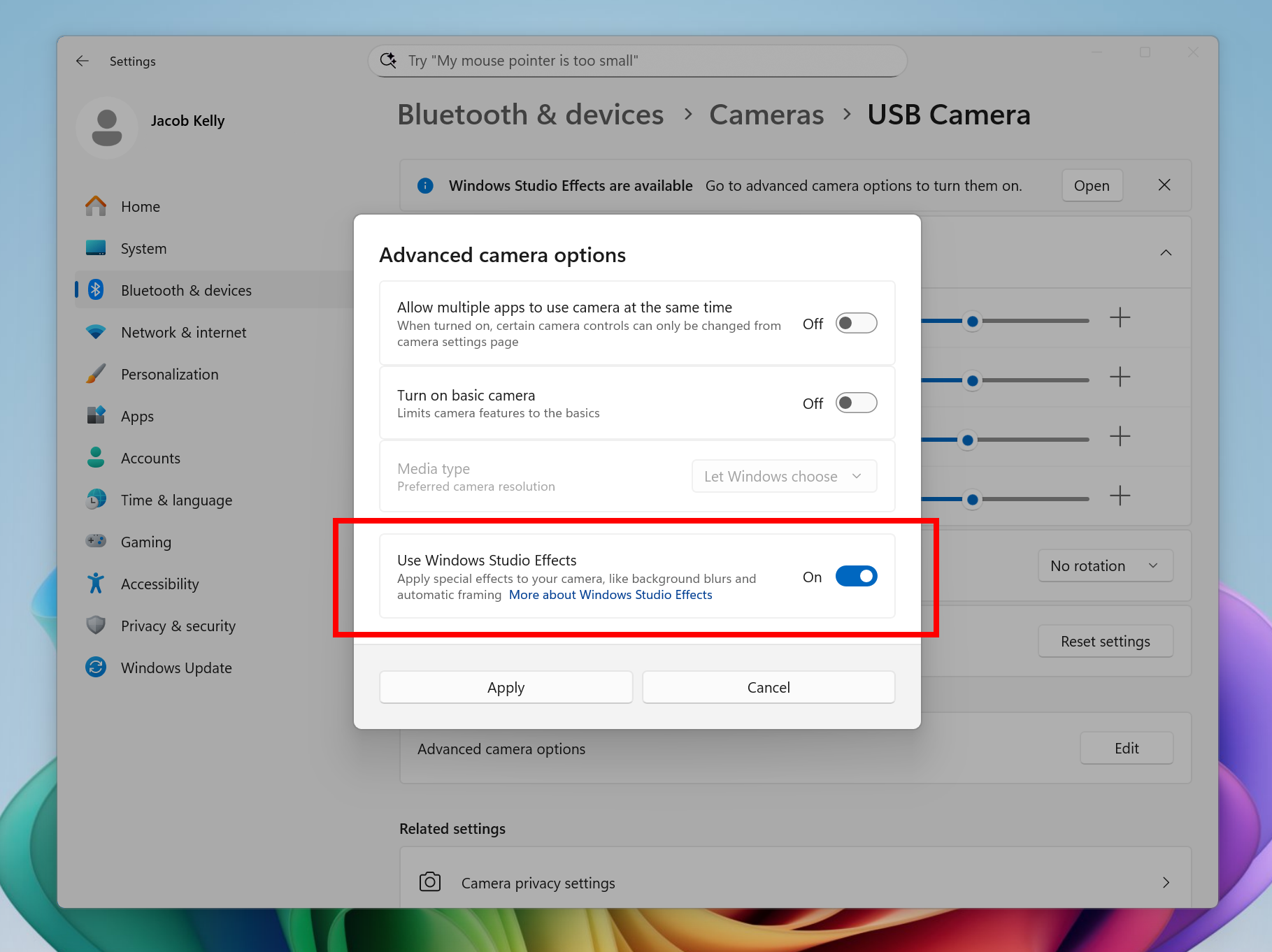
New option inside Settings to turn on the ability to use Windows Studio Effects on an additional camera highlighted in a red box.
To get started, navigate to Settings > Bluetooth & devices > Cameras and select your preferred camera from the connected cameras list. Then, open the advanced camera options menu to find the new “Use Windows Studio Effects” toggle. Once enabled, you can now access and adjust Studio Effects directly from the camera settings page or via the quick settings menu in the taskbar.
NOTE: The required update for the Windows Studio Effects driver will first roll out to Intel®-powered Copilot+ PCs with the update rolling out for AMD and Snapdragon-powered Copilot+ PCs in the coming weeks.
FEEDBACK: Please file feedback in Feedback Hub (WIN + F) under Desktop Environment > Studio Effects.
Changes and Improvements gradually being rolled out to the Beta Channel with toggle on*
[Agent in Settings]
The following changes and improvements are rolling out for agent in Settings on Copilot+ PCs:
We are beginning to roll out the new agent in Settings experience to Windows Insiders with their primary display language is set to French.
[File Explorer]
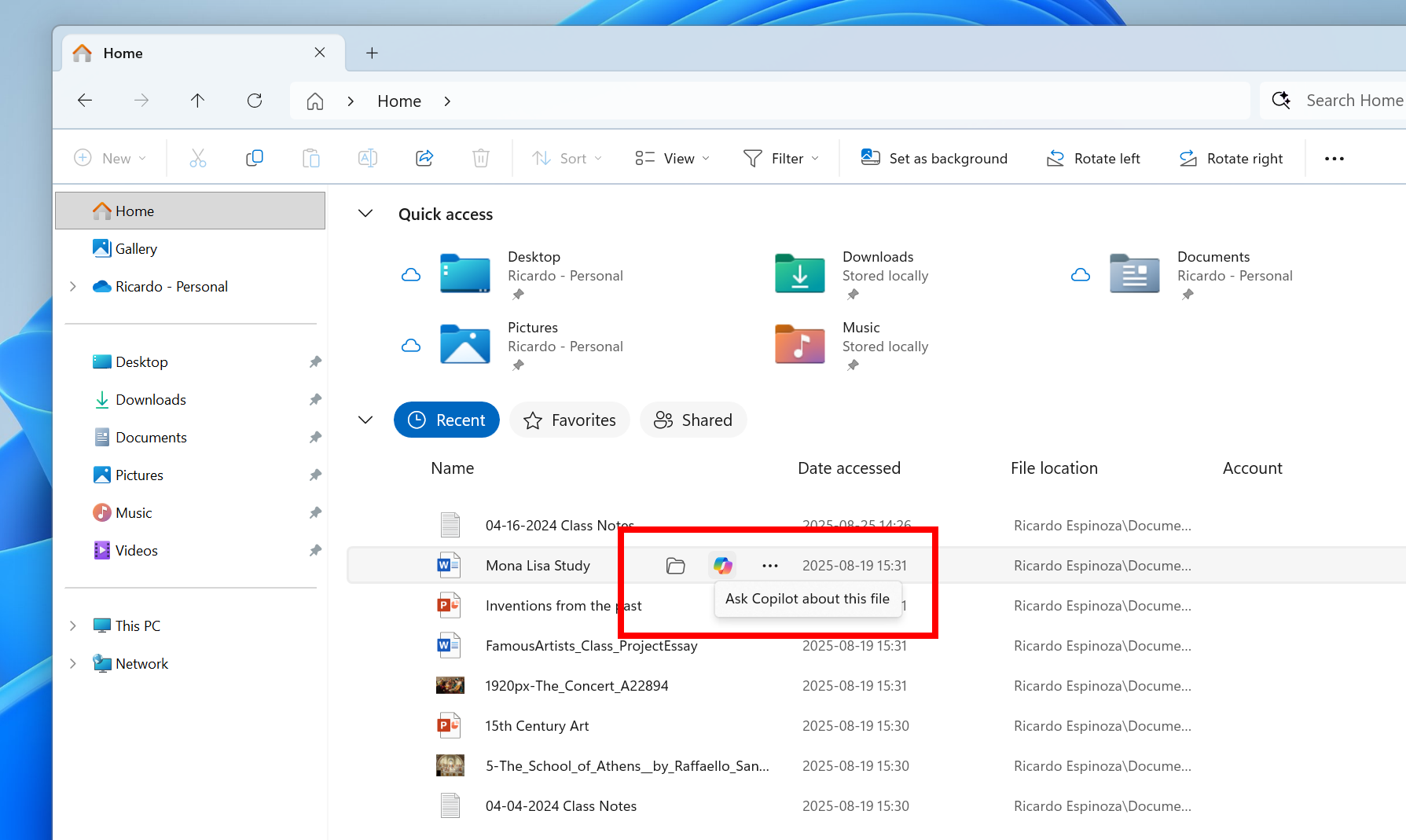
File Explorer Home now offers on-hover actions for faster file management. Hovering over a file with your mouse in File Explorer Home will display commands like Open file location and Ask Copilot about this file. You will be able to try out the Copilot integration and attach files easily. This experience currently only works if you’re signed in with a Microsoft account. Work or school account (Entra ID) support is coming in a future flight. This change is not yet rolling out to Windows Insiders in the EEA (European Economic Area).
On-hover actions in File Explorer Home highlighted in a red box.
[Settings]
Advanced Settings will revert to the previous “For Developers” experience after updating to this build. This change will come back soon.
Fixes gradually being rolled out to the Beta Channel with toggle on*
[General]
Fixed an underlying issue which was causing Insiders on certain devices to experience an unexpected increase in lag in various scenarios after the latest flights, including when interacting with File Explorer and taskbar (clicks could take 500ms to be processed), and browser windows (particularly when watching videos). Performance issues can have multiple causes, so if you’re continuing to experience issues, please let us know by filing feedback, including as many details as possible.
[Taskbar & System Tray]
Fixed an issue which could cause the app preview windows in the taskbar to become misaligned (away from the app icon you’d clicked / hovered over) after a display resolution change.
[File Explorer]
Fixed an issue where with certain apps installed, when you right clicked you may see the context menu unexpectedly switch back and forth with each right click between the normal initial view and “Show more options”.
[Settings]
Fixed an issue causing Settings > System > Storage > Temporary files to get stuck when scanning files.
[Other]
Fixed an issue causing an event saying “The “Microsoft Pluton Cryptographic Provider” provider was not loaded because initialization failed” with error 57 to appear in Event Viewer for some Insiders after boot.
Dev Channel 26220.5790
New Copilot+ PC experiences
Introducing fluid dictation in voice access
Fluid dictation is a new feature in voice access on Copilot+ PCs, that makes voice-based dictation smoother and smarter. It automatically corrects grammar, punctuation, and filler words as you speak, reducing the need for manual editing. This experience is powered by on-device small language models (SLMs) so ensure fast and private processing. To use it, launch voice access and complete setup if you’re a first-time user. Fluid dictation is enabled by default – you can check or toggle it via the settings flyout in the top-right corner or simply say “turn on/off fluid dictation.”
The option to turn fluid dictation on or off in the settings flyout in voice access highlighted in a red box.
It works in any text app but is disabled in secure fields like passwords or PINs to protect your privacy. Fluid dictation in voice access is currently available in all English locales and is available on all Copilot + PCs.
FEEDBACK: Please file feedback in Feedback Hub (WIN + F) under Accessibility > Voice access.
Making Windows Studio Effects available on additional cameras
We are working to bring the Windows Studio Effects experience from integrated laptop cameras to a broader range of camera hardware, helping you stay professional and look your best across more setups. On supported Copilot+ PCs, we are rolling out the ability to use Studio Effect’s AI-powered camera enhancements with an additional, alternative camera – such as a USB webcam or your laptop’s built-in rear camera.
New option inside Settings to turn on the ability to use Windows Studio Effects on an additional camera highlighted in a red box.
To get started, navigate to Settings > Bluetooth & devices > Cameras and select your preferred camera from the connected cameras list. Then, open the advanced camera options menu to find the new “Use Windows Studio Effects” toggle. Once enabled, you can now access and adjust Studio Effects directly from the camera settings page or via the quick settings menu in the taskbar.
NOTE: The required update for the Windows Studio Effects driver will first roll out to Intel®-powered Copilot+ PCs with the update rolling out for AMD and Snapdragon-powered Copilot+ PCs in the coming weeks.
FEEDBACK: Please file feedback in Feedback Hub (WIN + F) under Desktop Environment > Studio Effects.
Changes and Improvements gradually being rolled out to the Dev Channel with toggle on*
[Agent in Settings]
The following changes and improvements are rolling out for agent in Settings on Copilot+ PCs:
We are beginning to roll out the new agent in Settings experience to Windows Insiders with their primary display language is set to French.
[File Explorer]
File Explorer Home now offers on-hover actions for faster file management. Hovering over a file with your mouse in File Explorer Home will display commands like Open file location and Ask Copilot about this file. You will be able to try out the Copilot integration and attach files easily. This experience currently only works if you’re signed in with a Microsoft account. Work or school account (Entra ID) support is coming in a future flight. This change is not yet rolling out to Windows Insiders in the EEA (European Economic Area).
On-hover actions in File Explorer Home highlighted in a red box.
[Settings]
Advanced Settings will revert to the previous “For Developers” experience after updating to this build. This change will come back soon.
Fixes gradually being rolled out to the Dev Channel with toggle on*
[General]
Fixed an underlying issue which was causing Insiders on certain devices to experience an unexpected increase in lag in various scenarios after the latest flights, including when interacting with File Explorer and taskbar (clicks could take 500ms to be processed), and browser windows (particularly when watching videos). Performance issues can have multiple causes, so if you’re continuing to experience issues, please let us know by filing feedback, including as many details as possible.
[Taskbar & System Tray]
Fixed an issue which could cause the app preview windows in the taskbar to become misaligned (away from the app icon you’d clicked / hovered over) after a display resolution change.
[File Explorer]
Fixed an issue where with certain apps installed, when you right clicked you may see the context menu unexpectedly switch back and forth with each right click between the normal initial view and “Show more options”.
[Settings]
Fixed an issue causing Settings > System > Storage > Temporary files to get stuck when scanning files.
[Other]
Fixed an issue causing an event saying “The “Microsoft Pluton Cryptographic Provider” provider was not loaded because initialization failed” with error 57 to appear in Event Viewer for some Insiders after boot.